You do not have to drag the map for every field or bandit, or keep every useful coordinate buried in chat. Search finds nearby current targets, bookmarks save private positions, and Alliance markers show a shared objective. Use them for their different purposes.
Search begins around the current view
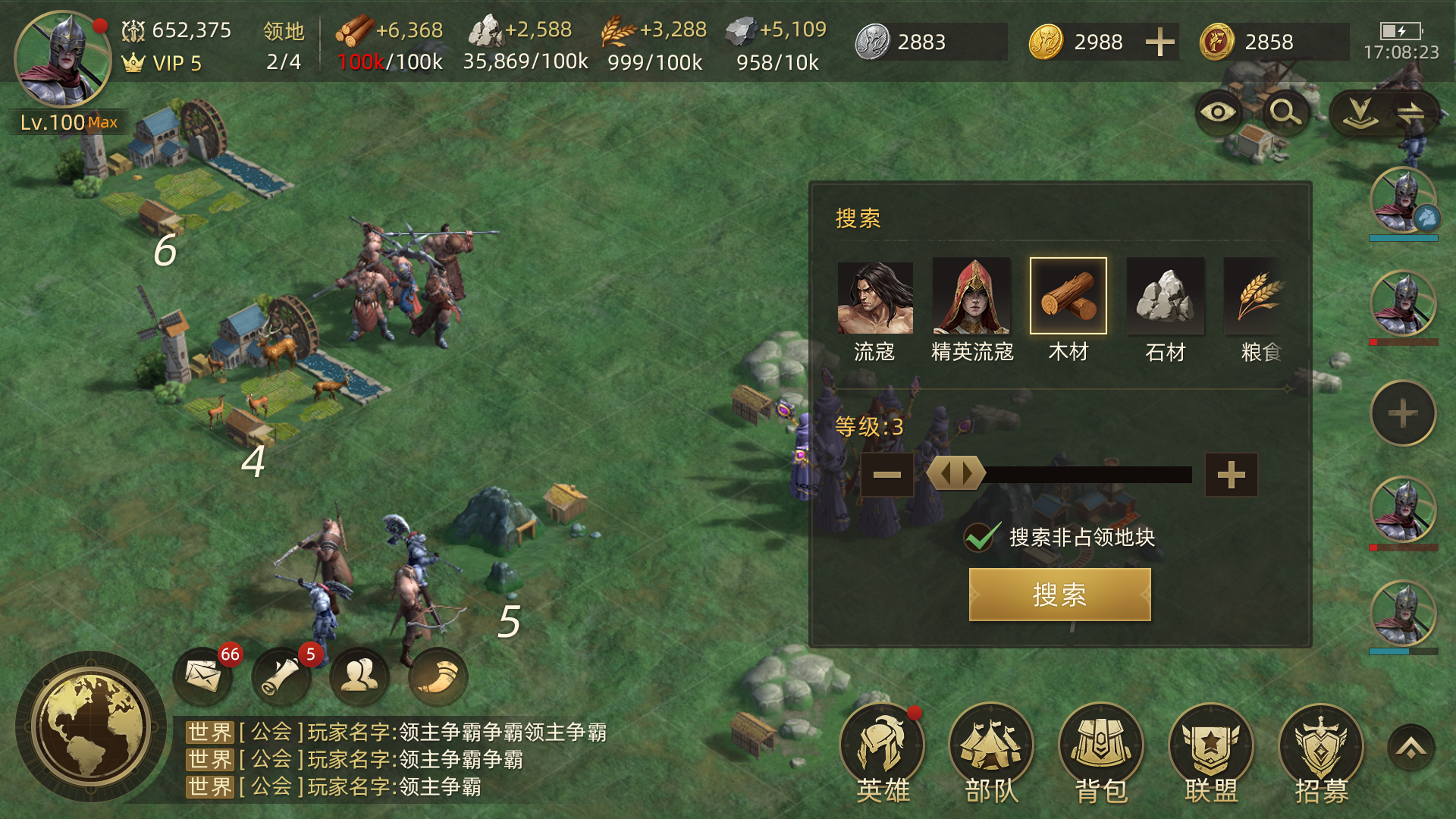
- Move the camera to the area where you want to act, then open search at the upper right of the map. It searches near the current view center rather than always using your city or scanning the entire world.
- Choose a target type, such as bandits, elites or a particular basic resource field, then choose its level.
- When seeking unoccupied fields, inspect the option that excludes occupied targets.
- Search. A result moves the camera to the target and selects it. Inspect defenders, owner, protection and the actual route before dispatching.
The game remembers the selected level for different target types. Check the current setting rather than assuming every search starts again at the lowest level. A target near the view center is not automatically the fastest or safest march from your troop’s departure point.
No result does not mean none can ever exist
Check type, level, area and whether the unoccupied-only option excludes the available fields. If a target category awaits a Supremacy stage, the interface gives that condition; changing levels repeatedly will not bypass it.
A bandit you have already dispatched troops to attack is excluded from subsequent search during the relevant attempt, helping avoid duplicate assignments. Stopping the attempt can make it searchable again. Interpret changing results alongside your own marching troops rather than assuming someone else killed the target.
Bookmarks are private location notes
Select a tile or building, choose the bookmark command, enter a short useful name and confirm. Find it later under Markers → Bookmarks and select the entry to navigate. A name describing the job, such as a field you plan to replace or a meeting area, helps organize the list, but it is not live confirmation of the target’s state.
Bookmarks are visible only to you and do not send operation notices to allies. At capacity, remove obsolete ones. Removing a bookmark deletes the note; it does not abandon a field or demolish a building. Reopen the target when ownership or state may have changed.
Use the automatic Buildings and shared Alliance lists
Your city, Foundations and personal personal Camps automatically appear in building markers. When the corresponding structure disappears, its automatic entry is removed. The Alliance Stronghold and officer-created markers appear in the Alliance section.
An authorized officer selects a target, chooses an attack, defense, assembly, construction or other marker and adds its description. Members follow the list or command mail to the same coordinates. Editing or removing that marker changes what the whole Alliance sees, so align it with the operation instead of publishing a personal reminder as an Alliance attack order.
Handle overlapping markers and old coordinates separately
If a bookmark and Alliance marker occupy the same location, the map prioritizes the Alliance marker. The private bookmark is still in its list. If no marker is visible, inspect zoom and display state, then locate it from the appropriate list.
A saved coordinate grants no territory, passage or attack eligibility. Camera navigation is instant, but troops still need a valid route, Stamina and target conditions. Closing a map clears marker lists; establish useful positions again on the new map instead of relying on an old screenshot. Before acting on an old Alliance marker, confirm it remains the objective for the current operation.